
Working with a large spreadsheet can eat up your time. You need totals, trends, charts, and highlighted numbers, and building each one by hand is slow. The Quick Analysis tool in Excel solves this by putting formatting, charts, totals, tables, and sparklines in one small menu that appears when you select your data.
Thank you for reading this post, don't forget to subscribe!This guide shows you exactly how to open the tool, how to use each of its five tabs, what to do when the button is missing, and how to apply it to real business numbers such as revenue, expenses, and invoices. You will also see how it compares with PivotTables, Analyze Data, and Copilot in Excel.
What Is the Quick Analysis Tool in Excel?
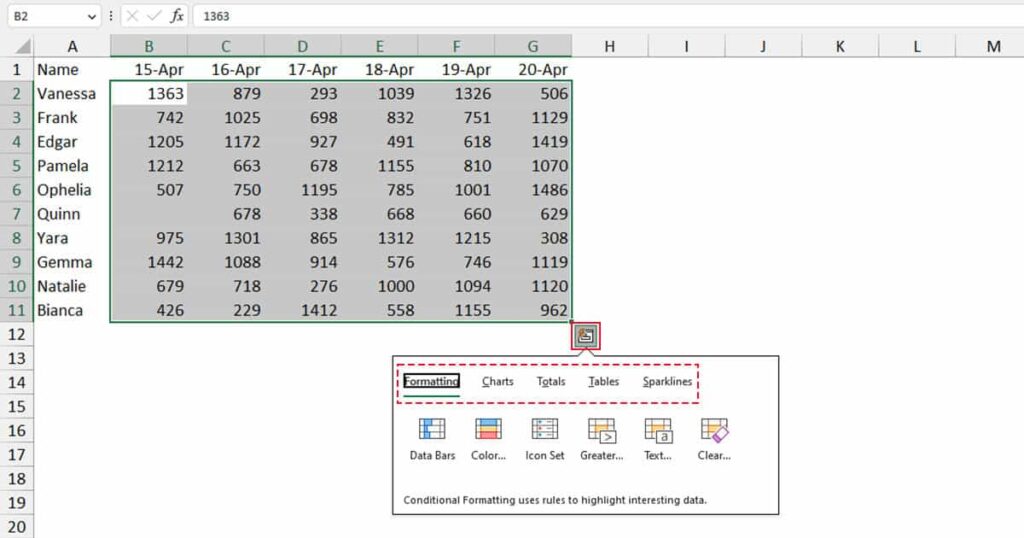
The Quick Analysis tool is a built-in Excel feature that gives you one-click shortcuts for analyzing selected data. When you select a range of cells, a small button appears near the bottom-right corner of the selection. Click it, and Excel shows five categories: Formatting, Charts, Totals, Tables, and Sparklines.
Microsoft introduced Quick Analysis in Excel 2013. Its goal is simple: let you complete common tasks without searching through the ribbon.
For example, if you have monthly sales for several products, you can highlight the best months, add a total, and create a chart in under a minute.
Is Quick Analysis an AI Feature?
No. Quick Analysis uses Excel’s standard commands. It does not use artificial intelligence. Excel has separate features, such as Analyze Data and Copilot in Excel, that can answer questions about your data in plain language. We compare them later in this guide.
How to Open the Quick Analysis Tool in Excel
Follow these steps:
- Open your workbook in Excel.
- Select a range of cells with data (at least two cells; a single cell will not work).
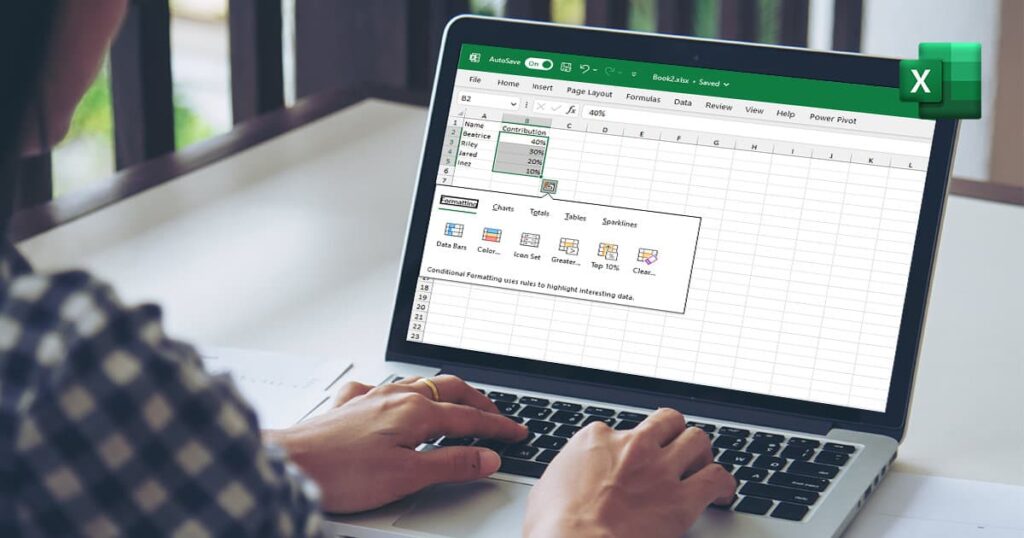
- Click the Quick Analysis button that appears at the bottom-right corner of the selection.
- Choose a tab: Formatting, Charts, Totals, Tables, or Sparklines.
- Hover over an option to see a live preview, then click it to apply.
Quick Analysis Shortcut (Ctrl + Q)
In Excel for Windows, select your data and press Ctrl + Q to open the Quick Analysis menu without using the mouse. If nothing happens, make sure you selected more than one cell and that the feature is turned on (see the next section).
Quick Analysis Not Showing? How to Fix It
If the button does not appear, try these fixes in order:
- Select a range, not one cell. The button needs a block of data.
- Turn the setting on. Go to File > Options > General and check Show Quick Analysis options on selection. Then click OK.
- Check your version. Quick Analysis is available in Excel 2013 and later for Windows. It is not available in Excel for the web, and it may not be available in Excel for Mac. Confirm in Microsoft’s documentation for your exact version.
- Restart Excel after changing the setting.
- Clean the data. Merged cells and blank header rows can stop the button from appearing.
If the tool is not available on your platform, you can do the same tasks from the Home, Insert, and Data tabs.
The Five Quick Analysis Features Explained
1. Formatting
The Formatting tab applies conditional formatting so important values stand out. Options include Data Bars, Color Scale, Icon Set, Greater Than, Top 10%, and Clear Format.
Use it to spot unusually high expenses, weak sales months, or departments that are over budget. Formatting changes only how cells look. It never changes the underlying numbers.
Context matters: a high sales figure is good news, but a high expense or debt balance may be a warning.
2. Charts
The Charts tab shows Recommended Charts based on your selection, with a More Charts option for the full list. Depending on your data, you may see clustered column, line, pie, stacked column, or scatter charts.
- Use a column or bar chart to compare products or categories.
- Use a line chart to show change over time.
- Use a pie chart only for a few parts of a whole.
Before charting, check that your labels are clear and your dates are in a proper date format. A neat chart built on messy data can still mislead.
3. Totals
The Totals tab adds quick calculations such as Sum, Average, Count, % Total, and Running Total. Excel places the results below or beside your data, depending on the option.
For example, five sales of $100, $250, $175, $300, and $125 add up to $950. The average sale is $950 ÷ 5 = $190.
Totals are handy for quick checks, but they do not replace a full accounting review when you need profit, tax, or cash flow figures.
4. Tables
The Tables tab offers three useful shortcuts:
- Table, which converts your range into a structured Excel table with filters and banded rows.
- PivotTable, which creates a blank PivotTable.
- Recommended PivotTables, which suggest ready-made summaries.
Tables make it easy to sort, filter, and expand data, and they work well with formulas. For example, an invoice list with columns for Date, Customer, Amount, and Status becomes much easier to filter once it is a table.
5. Sparklines
Sparklines are tiny charts inside a single cell. The tab offers Line, Column, and Win/Loss types.
Place a line sparkline beside each product to show its monthly trend at a glance. They save space, but they show only the general direction. If exact values matter, use a full chart.
Quick Analysis Examples With Business Data
The examples below follow one small business over six months so the numbers stay consistent.
Example 1: Analyze Monthly Revenue
| Month | Revenue |
|---|---|
| January | $4,500 |
| February | $5,200 |
| March | $4,900 |
| April | $6,100 |
| May | $6,800 |
| June | $7,200 |
- Select the data, including the headings.
- Press Ctrl + Q.
- Open Charts and pick a line chart to see the trend.
- Open Totals and choose Sum and Average.
The six-month total is $34,700 and the average is about $5,783.33 per month. Revenue rose overall from January to June, with a small dip in March. Six months of data is not enough to prove a long-term trend, so avoid strong conclusions.
Example 2: Review Monthly Expenses (March)
| Expense category | Cost |
|---|---|
| Rent | $1,000 |
| Payroll | $1,500 |
| Software | $150 |
| Marketing | $450 |
| Utilities | $300 |
| Supplies | $200 |
The total is $3,600. Use Data Bars from the Formatting tab to see which categories are largest. Payroll is the biggest cost at about 41.7% of spending, followed by rent at about 27.8%.
The largest expense is not always the one to cut. Compare costs with revenue and with previous months first.
Example 3: Compare Revenue and Expenses
| Month | Revenue | Expenses | Difference |
|---|---|---|---|
| January | $4,500 | $3,100 | $1,400 |
| February | $5,200 | $3,400 | $1,800 |
| March | $4,900 | $3,600 | $1,300 |
| April | $6,100 | $3,800 | $2,300 |
In the Difference column, enter =B2-C2 in row 2 and copy it down. Then apply a Color Scale or create a column chart with Quick Analysis.
This figure is simple revenue minus listed expenses. It is not net profit, because taxes, interest, and depreciation are not included.
Example 4: Track Unpaid Invoices
| Invoice | Amount | Status |
|---|---|---|
| INV-101 | $450 | Paid |
| INV-102 | $700 | Unpaid |
| INV-103 | $325 | Paid |
| INV-104 | $900 | Unpaid |
Select the data, open Tables, and choose Table to add filters. Filter the Status column to show only unpaid invoices. To total them with a formula, use:
=SUMIF(C2:C5,"Unpaid",B2:B5)
The result is $1,600 outstanding. Quick Analysis helps you organize this list, but it cannot collect payments or verify bank deposits.
Quick Analysis vs. Analyze Data vs. Copilot in Excel
Many people searching for Quick Analysis also want to know about Excel’s newer analysis features.
| Feature | What it does | Best for |
|---|---|---|
| Quick Analysis | One-click formatting, charts, totals, tables, sparklines | Fast summaries of selected data |
| PivotTables | Group and summarize larger datasets | Reports by category, month, or region |
| Analyze Data | Suggests insights and charts, and answers plain-language questions | Exploring patterns in Microsoft 365 |
| Copilot in Excel | AI assistant for questions, formulas, and analysis | Users with a Microsoft 365 Copilot license |
| Power Query | Import, clean, and combine data | Preparing data from several sources |
| Analysis ToolPak | Statistical and engineering tools | Descriptive statistics and specialized tests |
These tools complement each other. Use Quick Analysis for speed, PivotTables for flexibility, Power Query for messy or multi-file data, and Analyze Data or Copilot when you want to ask questions in plain language. Availability of Analyze Data and Copilot depends on your Excel version, subscription, and language.
Privacy tip: Before uploading business spreadsheets to any AI service, review its privacy and data-retention policy and remove sensitive details where possible.
Common Problems and Fixes
- Chart looks wrong: check that you selected the right labels and values, remove blank rows, and make sure dates are real dates.
- Totals look off: look for numbers stored as text, hidden rows, or an incorrect selection. Compare with a manual calculation for important figures.
- Data is messy: remove merged cells and extra header rows, then convert the range to a table before analyzing.
Best Practices for Accurate Reports
- Give every column a clear, unique heading.
- Keep raw data on one sheet and reports on another.
- Double-check important formulas and totals.
- Choose the chart type that answers your question, and skip unnecessary effects.
- Protect files that contain customer, salary, or account information.
- Write down assumptions, such as which expenses are excluded.
Frequently Asked Questions
What is the Quick Analysis tool in Excel?
It is a built-in feature that gives you shortcuts for formatting, charts, totals, tables, and sparklines on selected data
How do I open the Quick Analysis tool in Excel?
Select a range of cells and click the button at the bottom-right of the selection. In Excel for Windows, you can also press Ctrl + Q.
Why is the Quick Analysis tool not showing in Excel?
Usually the cause is a single-cell selection, a disabled setting, or an unsupported version. Select a range and turn on Show Quick Analysis options on selection under File > Options > General.
Can Quick Analysis create charts automatically?
It suggests recommended charts for your selection. You preview them, pick one, and then customize it.
Can I use Quick Analysis for financial data?
Yes. It works well for basic summaries of revenue, expenses, and invoices. Complex accounting and forecasting need other tools.
Is Quick Analysis an AI tool?
No. It is a standard Excel feature. Analyze Data and Copilot in Excel are the AI-style features.
What is the difference between Quick Analysis and PivotTables?
Quick Analysis gives fast shortcuts. PivotTables give you much more control to group, filter, and summarize large datasets. Quick Analysis can even create a PivotTable for you from its Tables tab.
What is the Quick Analysis tool in Excel?
No. It can highlight unusual values, but it cannot confirm fraud. Dedicated fraud detection systems use extra rules and data.
Does Quick Analysis work in every Excel version?
No. It was introduced in Excel 2013, so older versions lack it, and it is not available in Excel for the web. Check Microsoft’s documentation for your edition.
Is Quick Analysis better than formulas?
It is faster for common tasks, while formulas give more control. Most people use both.
.
Conclusion
The Quick Analysis tool in Excel turns raw data into summaries and visuals in a few clicks. Select your range, press Ctrl + Q, and choose from Formatting, Charts, Totals, Tables, or Sparklines. For deeper work, add PivotTables, Power Query, Analyze Data, or Copilot to your workflow.
Start with clean data, check your totals, and let Quick Analysis handle the repetitive parts so you can focus on the decisions behind the numbers.